Market Intelligence
How to Track a Competitor's Pricing Page for Changes
How to Track a Competitor's Pricing Page for Changes
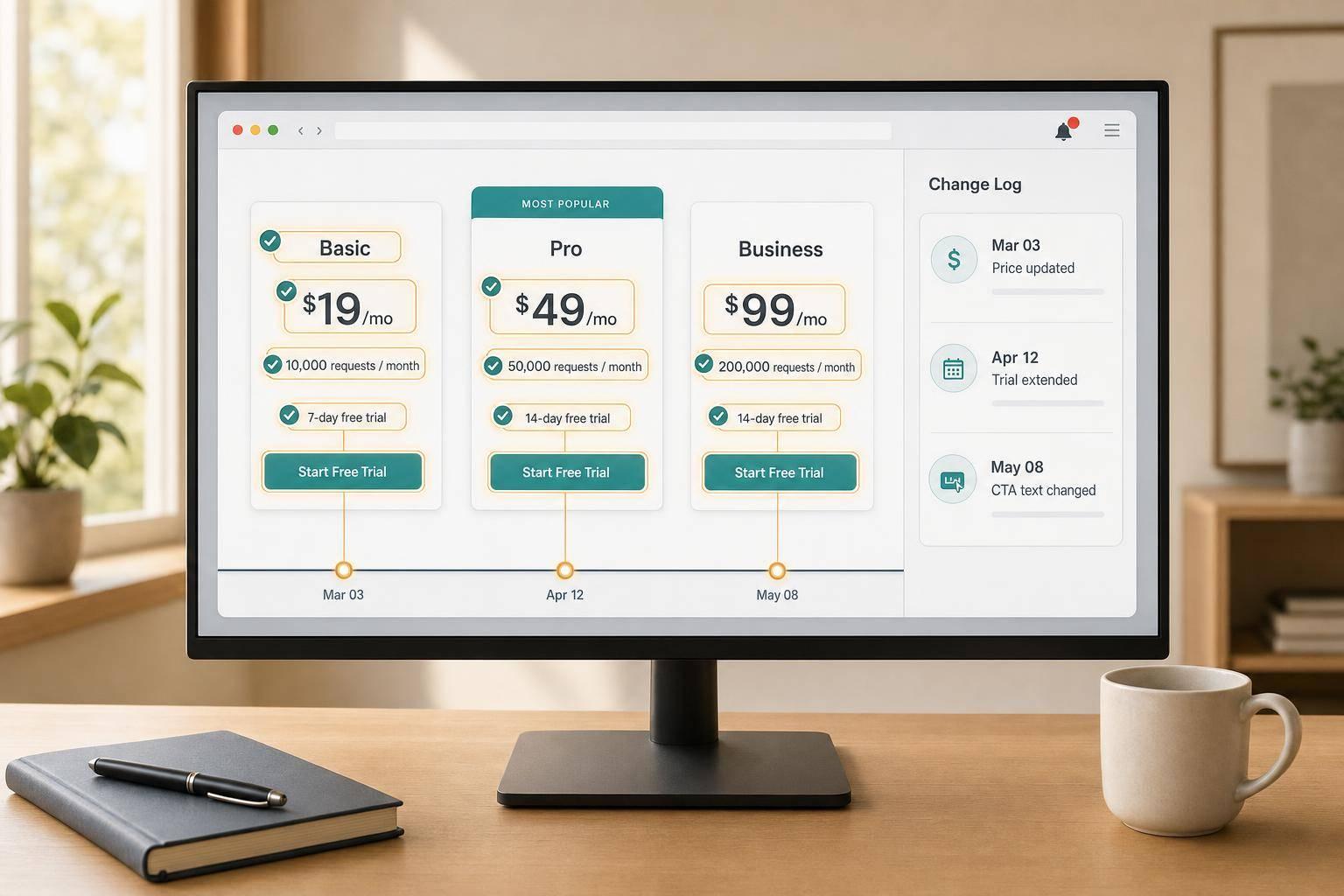
Most pricing alerts are junk because they watch the whole page. The fix is narrow tracking: monitor price text, plan names, limits, trial terms, billing copy, and CTAs, then log only confirmed changes with a date and screenshot.
If the target page is static, a CSS-selector monitor is often enough. If the page is JavaScript-heavy, use a browser-based scraper that saves fields like monthly_price, annual_price, and seat_limit. Add one backstop source - such as an RSS-from-page feed, FAQ page, or archived snapshot - so one odd alert does not waste time.
Use this setup:
- Watch elements, not full-page HTML
- Track supporting pages like billing FAQs and compare pages
- Filter out cookie banners, chat widgets, counters, and promo bars
- Check direct rivals daily or twice daily
- Keep a dated log with old value, new value, URL, and screenshot
A small setup works if the rules are tight. Noise control matters more than fancy tools.
Focus on the pricing elements that signal a strategy shift
Watch prices, plans, limits, trials, and billing language - not the whole page
You’re not trying to watch an entire pricing page like a hawk. You’re trying to catch the parts that change how people buy. That means tracking the fields tied to packaging, price, and billing terms, not every design tweak or homepage-style refresh.
At a minimum, monitor plan names, monthly and annual price points, per-seat or per-user billing language, feature limits, usage limits, free-trial length, discount copy, and refund or billing language [1][5][4]. These are the lines on the page that shape deal size, self-serve conversion, and upgrade behavior. If a company changes “$29/user/month billed annually” to “starting at $29,” that’s not cosmetic. It changes how the offer lands.
Also watch CTA text. A move from “Contact Sales” to “Start Free Trial” can point to a shift from sales-led to self-serve, or the other way around [2]. That kind of edit often shows up before a full pricing revamp, which makes it a useful early signal.
Structural changes tell you even more than a plain price edit. If a company adds a new tier, it may be chasing a different buyer or trying to fill a gap in its lineup. If it renames a tier from “Team” to “Business,” that can hint at a different buyer persona, budget owner, or use case [2].
Feature placement matters too. Moving one feature from a mid-tier plan into the entry plan can mean the funnel needs help at the top. Moving that same feature upward can mean upgrade pressure is weak and the company is trying to create more separation between tiers [2]. In plain terms: pricing pages don’t just show what a company sells. They show where the company thinks money is being left on the table.
A simple way to frame it is this:
| Field to watch | What a change may mean | Example |
|---|---|---|
| Plan name | Buyer shift or repositioning | “Team” becomes “Business” |
| CTA text | Motion shift | “Contact Sales” changes to “Start Free Trial” |
| Feature or usage limits | Upgrade pressure or funnel leak | API access moves from mid-tier to entry tier |
The point isn’t to guess intent from a single edit. The point is to stack signals. If plan names change, limits move, and CTA language flips in the same month, that’s usually a real strategy change, not random page maintenance.
Once the fields are clear, you can monitor them with cheap tools and one extra signal source. That second signal might be a changelog, a billing FAQ, or even archived snapshots. One source catches the edit. The other helps confirm it wasn’t a glitch.
Include the supporting pages where pricing changes often hide
The main pricing URL gets the attention, but that’s not always where packaging shifts appear first. Teams often update supporting pages before they touch the headline pricing grid, especially when legal, billing, or support owns the copy.
Check Compare Plans pages, billing and cancellation FAQs, add-on pricing pages, enterprise/security pages, and changelogs. These pages often reveal changes in scope before the core pricing page catches up. A company may still show the same three plans on /pricing, while the FAQ quietly changes trial terms or the add-ons page introduces a new usage charge.
This matters because packaging rarely lives in one place. If the pricing page says “unlimited projects” but the help center now says “subject to fair use,” the billing model may be tightening before the headline copy catches up. Same deal with enterprise/security pages: a new mention of SSO, audit logs, or dedicated support can signal that the company is building more distance between self-serve and sales-assisted plans.
Changelogs are worth watching even when they seem product-focused. Teams sometimes announce that a feature is now “available on Pro and above” or “included for all customers,” and that’s a pricing move in disguise. If you only track /pricing, you miss it.
A low-cost setup usually works fine here. Use one monitor on the pricing page itself, then add checks for the supporting URLs where billing terms or packaging details tend to drift first. KAEOA often treats this as a page-cluster problem, not a single-page problem, because that’s how these edits show up in the wild.
List noise sources before you alert
Before you set a single alert, write down what changes on the page for reasons that have nothing to do with pricing strategy. This step sounds boring, but it saves you from the classic mess: dozens of alerts, almost none useful.
The usual noise sources are geo-based currency switches, A/B test copy variants, live counters, social-proof widgets, rotating testimonials, cookie banners, chat widgets, and seasonal promo banners with countdown timers [1][4][6]. If you monitor the full page HTML, these parts will fire alerts constantly. Your inbox turns into static, and the real pricing edits get buried.
Take geo-based pricing as one example. A page might show $49/month in the U.S. and local currency elsewhere. That doesn’t always mean the company changed pricing. It may just mean the page detected a different location. The same goes for A/B tests. One visitor sees “Start Free Trial,” another sees “Try for Free,” and neither version reflects a lasting strategy change.
The fix is practical: monitor page elements with CSS selectors instead of watching the whole page [1][3]. If the price lives in .plan-price and the card content lives in .pricing-card, target those blocks directly. Then a cookie banner, testimonial slider, or chat bubble doesn’t count as a page change at all.
A few selector-level checks go a long way:
- Track the plan card container, not the whole page body.
- Isolate price text, billing copy, and limit rows separately when possible.
- Exclude floating elements like chat launchers, pop-ups, and promo bars.
This approach has limits. Some sites render pricing through JavaScript, randomize class names, or swap content by region after page load. In those cases, a selector that works today may break next week, or the monitor may miss the change unless the tool supports rendered pages. That’s why a second lightweight signal matters. A page monitor catches the direct edit, while a supporting page, archived snapshot, or changelog helps confirm whether the change is real.
Another trade-off: tighter selectors cut noise, but they can also miss changes if the site restructures its markup. If .plan-price becomes .price-value, your monitor goes quiet for the wrong reason. Check selectors now and then, especially after major redesigns.
The upside is simple. When you define the fields that matter and remove the junk that doesn’t, alerts start to mean something. Instead of reacting to every blinking widget on the page, you see the edits tied to packaging, motion, and monetization. That’s the level where pricing pages start telling the truth.
sbb-itb-15d6cfa
Your competitor dropped prices at 2 AM. Here's how to catch it automatically.
Build a low-cost monitoring stack that replaces manual checking
Competitor Pricing Monitor: Tool & Page Type Comparison Guide
Manual price checks fall apart fast. A few competitor pages turn into a weekly chore, and the worst part is that the one change that matters usually lands between checks. A cheap monitoring stack fixes that by watching the exact pricing elements you care about and sending alerts only when something moves.
Use a two-layer setup. The first layer spots direct edits on the page. The second layer acts as a backstop, so you can tell the difference between a real pricing move and some tiny copy or layout nudge.
Use element-level page monitors to alert on meaningful edits
Tools like Visualping, Distill.io, and changedetection.io are the fast path. Paste in a URL, select the pricing block, and wait for alerts. In most cases, setup takes a few minutes per URL, not an afternoon.
The key move is simple: monitor the pricing card or plan table element, not the whole page. If a page has a selector like .plan-price, .pricing-card, or a table wrapper for the plans, target that directly. Most of these tools support CSS selectors, which gives you tighter monitoring than a full-page screenshot or a whole-page text diff.
That matters because full-page checks are noisy. A new testimonial, a footer edit, or a banner change can trip an alert even though pricing stayed put. Element-level monitoring cuts a lot of that noise and keeps the signal closer to what the team cares about.
There’s a catch, and it’s worth stating plainly. These tools do not tell you whether the change is a true price move, a seat limit update, or just a wording tweak like “per user” becoming “per seat.” They only tell you that the selected element changed. That’s useful, but not enough on its own.
Example: if
.pricing-cardchanges because the vendor adds “Most Popular” above the middle tier, a page monitor still fires. The alert is real, but the business meaning may be zero.
This is why a second signal helps. Not because the first layer is bad, but because it’s blunt.
Add an RSS-from-page feed as a lightweight second signal
An RSS-from-page service turns a URL, or a selected element on that page, into a feed. You subscribe in Feedly or Inoreader, and any update shows up like a normal feed item. It’s a low-cost way to add confirmation without setting up code or another heavy system.
Use this second layer on the same pricing elements you monitor in the first layer. If both the page monitor and the RSS feed trigger on the same day, odds are much better that something changed in a way worth checking. It’s not magic, but it’s a clean sanity check.
This works well for teams that already live in a reader like Feedly or Inoreader. Instead of burying every alert in email, the feed gives you a second place to verify changes and skim patterns across vendors. For small monitoring programs, that alone can cut a lot of inbox fatigue.
There are limits. Some RSS-from-page tools struggle with JavaScript-heavy pages because the content is not fully present in the raw HTML. If the pricing table appears only after client-side rendering, the feed may miss it or output messy fragments. At that point, you need a browser-based capture.
Use a scraper or KAEOA when the page is dynamic or you need cleaner diffs
A lot of SaaS pricing pages render through JavaScript now. That breaks simple fetch-and-compare tools because the price block may not exist until the page runs scripts in the browser. When that happens, use a headless scraper.
A headless scraper built with Playwright or Puppeteer loads the page like a browser, waits for the pricing section to render, and then extracts named fields into a timestamped JSON record. Instead of comparing raw HTML, you compare structured fields such as:
- plan name
- monthly price
- annual price
- seat limits
- trial length
That small shift changes the quality of your alerts. If the old record says monthly_price: "$29" and the new one says monthly_price: "$39", you know what changed right away. If trial_length moves from 14 to 7, that gets flagged cleanly too. You avoid the mess of visual diffs where spacing, badges, or button text can make a harmless edit look bigger than it is [4][2].
A simple JSON snapshot might look like this:
{
  "captured_at": "09/08/2026 09:30 AM",
  "plans": [
    {
      "name": "Pro",
      "monthly_price": "$39",
      "annual_price": "$29",
      "seat_limit": "3 users",
      "trial_length": "14 days"
    }
  ]
}
With that setup, each new run compares the latest capture to the last one. Only field-level changes trigger alerts. That makes the output much cleaner than raw HTML monitoring, especially when the page design changes but the actual offer does not [4][2].
There’s a trade-off here too. Headless scraping takes more work. You have to maintain selectors, handle waits, and deal with anti-bot friction on some sites. A redesign can break extraction even if the pricing itself stays the same. So while the signal is cleaner, the upkeep is higher than with point-and-click monitors.
If writing and maintaining scraper code is not worth it, KAEOA can sit in the middle. It lets you add a custom page scraper to a monitor alongside other sources like news feeds and RSS. It captures the page and sends a digest by email or in its console. That can be handy when pricing-page changes need to sit next to other market signals instead of living in a separate tool.
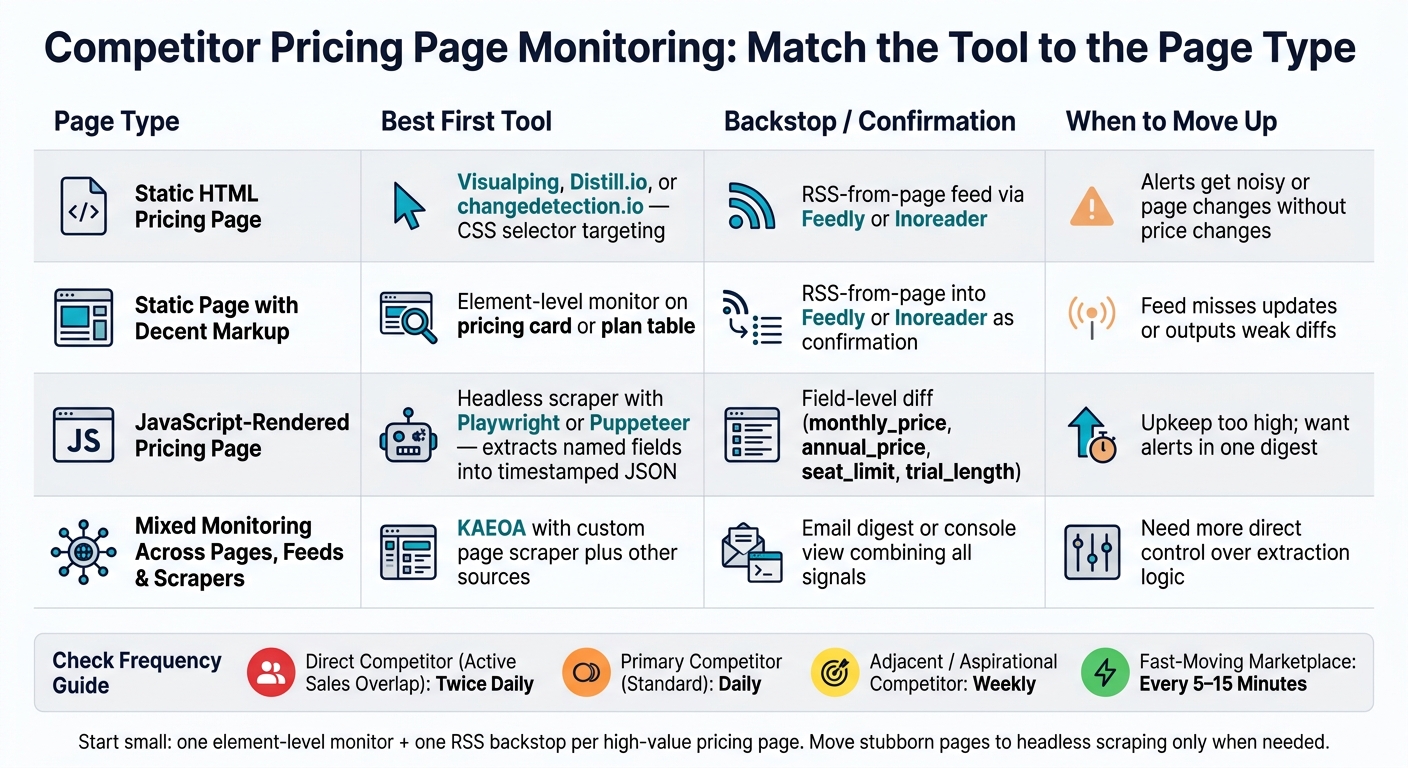
One practical way to decide between these options is to match the tool to the page type:
| Page type | Best first step | When to move up |
|---|---|---|
| Static HTML pricing page | Visualping, Distill.io, or changedetection.io on a CSS selector | Move if alerts get noisy or the page changes often without price changes |
| Static page with decent markup | Add RSS-from-page into Feedly or Inoreader as confirmation | Move if the feed misses updates or outputs weak diffs |
| JavaScript-rendered pricing page | Headless scraper with Playwright or Puppeteer | Move if upkeep is too high and you want alerts rolled into one digest |
| Mixed monitoring across pages, feeds, and scrapers | Use KAEOA with a custom page scraper plus other sources | Move only if you need more direct control over extraction logic |
A good low-cost stack usually starts small: one element-level monitor and one RSS-style backstop for each high-value pricing page. Then you move only the stubborn pages to a headless scraper. That keeps cost and setup time down while still giving you a path for dynamic pages and cleaner diffs.
One honest caveat: confirmation by “same-day alert” is useful, not perfect. Two tools can agree on a harmless change, and two tools can also miss a short-lived edit if the page flips back before the next polling window. If the price move has legal or revenue impact, a human still needs to verify the page and store a screenshot or snapshot for the record.
The stack works best when you treat it like a filter, not a judge. The first layer tells you where to look. The second layer tells you whether the change is more than random page churn. The scraper layer, when you need it, tells you exactly which fields moved.
Cut false positives before they flood your inbox
Your monitors can be technically correct and still useless. If every tiny page tweak lands in your inbox, the signal gets buried under noise fast. What you want is an alert you can trust at a glance.
Worked example: monitor a SaaS pricing page in 20 minutes
Start with the parts of the page that actually matter for pricing decisions. On a SaaS pricing page, that usually means the plan cards, price text, limit rows, and the billing toggle for monthly versus annual views.
Ignore the junk around it. Banners, testimonials, logo strips, chat widgets, and promo bars change all the time and usually tell you nothing about product packaging or price. If the competitor splits pricing across an add-ons table or an enterprise contact page, monitor those URLs too, but apply the same exclusions so you stay locked on the commercial details.
Once you have one page scoped cleanly, most of the work shifts to exclusion and normalization. That’s the part that keeps a useful monitor from turning into a noisy one.
Remove unstable elements and normalize what you compare
Strip dynamic strings before you run diffs. A line like “Join 12,400 teams” can change every week with zero pricing impact, and a raw HTML diff will still treat it like a meaningful update. The same goes for footer dates, rotating promos, A/B test labels, and session-based widgets.
Normalize the content before comparison. Collapse whitespace, remove stray line-break noise, and ignore small punctuation or wording changes that don’t alter the offer. "$29/mo" versus "$29 per month" is the same price, so that alert should not wake anyone up.
Keep the diff pinned to a short set of fields:
- Plan names
- Price fields
- Limit rows
- Billing language
That sounds obvious, but plenty of teams skip it and then wonder why every front-end refresh blows up their alert stream. If the monitor watches too much page chrome, it starts acting like a design-change detector instead of a pricing monitor.
A simple rule helps: if a field would not change a sales call, don’t diff it. That one filter cuts a lot of nonsense.
Pick a check frequency that matches the market you cover
Check cadence should match the cost of being late. If a direct rival changes pricing in the morning and your sales team finds out three days later, that lag matters. If you track an adjacent player mostly for pattern spotting, weekly checks are usually enough.
| Competitor type | Suggested check interval |
|---|---|
| Direct competitor, active sales overlap | Twice daily |
| Primary competitor, standard monitoring | Daily |
| Adjacent or aspirational competitor | Weekly |
| Fast-moving marketplace | 5–15 minutes |
Use the table as a starting point, not a hard law. A fast-moving marketplace may justify checks every 5 to 15 minutes, but that only makes sense if the page itself changes at that pace and you have the filtering in place to handle it. More frequent polling without tighter exclusions just creates more noise, faster.
There’s also a trade-off here. Short intervals improve response time, but they can increase compute load, duplicate alerts, and analyst fatigue. Daily checks often beat near-live monitoring if the competitor rarely changes pricing and your team only reviews updates once each morning anyway.
After alerts are clean, log only the confirmed changes. That means a person, rule set, or review step marks whether the update is real before it enters your pricing history. KAEOA competitive intelligence works best when the monitor is treated like an input to a decision system, not a firehose that dumps every page twitch into the same queue.
If you keep the target narrow, strip unstable text, and set a check interval that fits the market, you end up with alerts worth opening instead of alerts you learn to ignore.
Turn raw alerts into a dated pricing-change log you can use over time
You verify an alert, confirm that the page actually changed, and then the trail often goes cold. That’s the mistake. If the change never makes it into a dated log, the team loses the before-and-after view that turns random page edits into a usable pricing record.
Treat every confirmed alert like evidence. Record it the same way every time so the team can compare movement across the signals that matter most: price, plan names, feature limits, trial terms, and billing language. Without that structure, the notes pile up and nobody can tell whether a rival is testing copy, shifting packaging, or pushing buyers toward sales.
Log each confirmed change in a standard format
Use one standard entry format for every confirmed change. That makes the log sortable, searchable, and easy to scan later without opening five tabs just to remember what happened. At a minimum, each row should include the date detected in MM/DD/YYYY, competitor name, page URL, change type, old value, new value, a snapshot or screenshot reference, and a one-line business takeaway.
| Field | Purpose |
|---|---|
| Date Detected | Builds a timeline for spotting trends |
| Competitor Name | Keeps entries easy to compare across rivals |
| Page URL | Shows exactly where the change happened |
| Change Type | Shows how to handle it |
| Old vs. New Value | Shows the exact delta at a glance |
| Snapshot Reference | Provides a verifiable source of truth |
| Strategic Note | Translates the change into a business takeaway |
That last field matters more than it looks. A plain record says, “Starter plan changed from $29 to $39.” A useful record says, “Starter plan changed from $29 to $39; likely push toward annual contracts or higher-ACV buyers.” Same fact, very different value to the team.
Keep the wording tight and consistent. If one entry says “pricing page edit,” another says “plan packaging,” and another says “billing tweak,” filtering turns into a mess. Pick a small set of labels and stick to them.
A clean entry can look like this in practice:
05/14/2026 | Competitor: Acme | URL: acme.com/pricing | Change Type: Price increase | Old Value: Pro $49/month | New Value: Pro $59/month | Snapshot: Wayback 05/13 + internal screenshot #117 | Strategic Note: First list-price increase on core self-serve tier; watch for plan-limit changes next.
That’s enough detail to be useful, but not so much that logging becomes a chore. If the format feels too heavy, people skip it. Then the log dies.
Rate severity so you know what needs follow-up
Once the record is in place, rate the change by impact. Not every page edit deserves the same level of attention. A rival killing a free plan is one kind of signal. A rival swapping a footer line is noise unless it repeats with other sales-page shifts.
Use three severity tiers so the team knows what to do next. Structural changes sit at the top: new plans, removed tiers, or a “Contact Sales” button replacing a self-serve signup. Those are high severity because they often point to a change in sales motion, buyer target, or packaging. In most teams, that should trigger a battle-card update within two weeks.
Price adjustments and feature-limit changes fit in the middle. They matter, but they don’t always mean a full strategy reset. Log them, flag them, and review again in 30 days to see whether a second move follows. One price change can be a test. Two related changes in a month start to look deliberate.
Cosmetic edits go at the bottom. That includes reworded CTAs, layout shifts, and new testimonials. These usually don’t need action right away, but they’re still worth keeping for historical context. Copy changes sometimes look harmless on day one and make more sense once they line up with later pricing or packaging moves.
A simple severity model keeps attention where it belongs:
- High severity: new plans, removed tiers, self-serve replaced by sales-led path
- Medium severity: price changes, usage-cap edits, feature-limit changes
- Low severity: CTA rewrites, layout changes, testimonial swaps
This does have a limit. Severity can be subjective, especially when a small copy change hints at a bigger go-to-market move. If that happens, mark the entry low or medium, but add a note about why it may matter later. The log should stay strict, not blind.
Use the log to spot patterns, not just one-off edits
The real payoff comes after a few weeks or months of entries. A single alert tells you that something changed. A dated log tells you how a competitor behaves over time.
That’s where patterns start to jump out. If a company keeps moving features into higher tiers, that points to upgrade pressure. If usage caps keep getting tighter, that points to a usage-limit shift. If the site replaces “Start free trial” with “Talk to sales,” then later adds enterprise FAQ language and removes monthly billing from top tiers, that looks like a sales-motion change, not a random copy pass.
Look for repeat behavior across a few categories:
- movement of features between plans
- changes to limits, seats, credits, or storage caps
- edits to trial length or signup friction
- billing-language changes such as monthly-to-annual emphasis
- self-serve versus sales-led conversion paths
This is where KAEOA or any internal tracker earns its keep: not by sending more alerts, but by preserving sequence. Sequence matters. A competitor may first tighten trial terms, then hide monthly pricing, then add “Contact Sales” on the top tier. Seen alone, each edit can look minor. Seen together, they tell a very plain story.
A worked example makes the point. Say the log shows these entries over 45 days for one rival: on 04/02/2026, the free plan drops from 5 users to 3; on 04/19/2026, the Pro tier moves API access behind a higher plan; on 05/11/2026, the pricing page adds a “Talk to sales” CTA above the Enterprise card. None of those changes proves the full strategy by itself. Taken together, they suggest the company is putting more pressure on expansion and steering larger accounts into sales.
That kind of read helps product marketing, sales, and pricing teams act sooner. Battle cards get sharper. Objection handling gets less stale. Pricing reviews stop leaning on guesswork.
Review the log on a fixed schedule. Weekly works for active markets. Twice a month can be enough for slower categories. The key is rhythm: if the team only checks when a big alert lands, patterns stay hidden in plain sight.
A fixed review also keeps the standard honest. Teams tend to loosen naming, severity labels, and note quality when nobody revisits the log. A short recurring pass cleans that up. It also forces one useful question: was this change a one-off edit, or part of a chain?
KAEOA can help centralize those entries, but the value still comes from disciplined logging and review. A messy tracker with lots of alerts is just noise with a timestamp.
Conclusion
Keep the setup simple. Track only the parts of the page that matter: price text, plan names, feature caps, and trial terms. Before monitoring starts, save one clean baseline snapshot so later changes have a solid point of comparison.
Usability comes down to noise control and check timing. Scope each monitor tightly, normalize the content you compare, and set a cadence that matches the market. For most solo operators, daily checks are enough. In slower markets, weekly often does the job.
Once alerts stop firing on junk changes, the log becomes the part that pays off. A dated log turns a stream of alerts into something you can act on. Without that history, even correct alerts tend to blur together after a few weeks.
Pricing pages often change before any public post, press release, or email announcement shows up. That’s why consistency matters more than fancy tooling. Monitor, verify, log, and review on a fixed schedule.
Keep the whole thing light enough that it still runs a month from now.
FAQs
How do I know if a pricing change is real or just page noise?
Don’t compare the whole page. Render the page, pull only the fields that matter, and check those against a saved baseline. For pricing pages, that usually means price, plan name, feature limits, and any free trial, billing, or CTA wording that changes what a buyer sees.
Watching the full DOM is noisy. Headers shift, cookie banners appear, promo bars rotate, and none of that tells you whether the offer changed. What matters is the pricing table or the tier cards. If the Pro plan moves from $49/month to $59/month, or the CTA changes from Start free trial to Contact sales, that deserves an alert. A footer link swap does not.
The practical setup is simple. Render the page in a browser context so JavaScript-built pricing blocks load the way a customer sees them. Then scope extraction to the pricing container only, such as a selector like .pricing-table, [data-testid="pricing-card"], or a card grid under a heading like h2:has-text("Pricing"). If the markup is messy, anchor on repeated card patterns and pull fields from each card instead of trying to parse the whole page.
After extraction, normalize the text before comparison. This step cuts down false alarms fast. Strip extra whitespace, lowercase where case does not matter, standardize punctuation, and convert near-equivalent billing text into one form. For example, $29/mo, $29 per month, and USD 29 monthly should map to the same stored value if they mean the same thing. The same goes for feature caps like 10 seats, Up to 10 users, or Includes 10 user accounts if your rules treat them as one limit.
A baseline should store field-level values, not raw HTML. That means each tier becomes a small record: plan name, displayed price, billing period, trial text, CTA text, and parsed feature limits. Once you do that, comparison becomes direct. You are no longer asking, “Did the page change?” You are asking, “Did the Business tier price change from $99 to $129, or did the storage limit move from 1 TB to 2 TB?”
Feature extraction works best when you parse both display text and numeric values. If a card says 5 projects or Unlimited projects, keep the original string and also store a structured form like { feature: "projects", limit_type: "numeric", value: 5 } or { feature: "projects", limit_type: "unlimited" }. That gives you cleaner matching later. It also helps when the wording shifts but the offer does not.
Low-confidence alerts are where most teams waste time. A page may load with missing cards because of a timeout, A/B test, consent wall, geo-based content, or rate limiting. If extraction returns only one tier when the baseline has four, don’t fire the same alert you would send for a price jump. Mark it as low confidence and suppress it unless a retry confirms the change. A good rule is to alert only when both the container match and the field parse pass basic checks.
Confidence scoring can stay pretty plain:
- High confidence: same plan matched, price or billing text changed, parsed cleanly
- Medium confidence: same card count, some text shifted, feature mapping partly parsed
- Low confidence: missing cards, selector drift, blocked render, partial page load
Only high-confidence changes should page someone right away. Medium-confidence events can go to review. Low-confidence ones should retry with a second render, maybe from another region or after a longer wait for network idle.
There’s also a limit here: normalization can hide changes if you get too aggressive. If you flatten Billed monthly and Billed annually into the same token, you miss a change that hits conversion and revenue. If you treat Free trial and Free demo as equivalent, you may blur a major shift in the funnel. The fix is simple: normalize formatting, not meaning. Clean up casing and spacing, but keep commercial intent separate.
A small field schema helps keep this disciplined:
| Field | Example raw value | Stored comparison value |
|---|---|---|
| plan_name | Pro | pro |
| price | $59/month | 59 USD / month |
| trial_text | 14-day free trial | 14 day free trial |
| billing_text | Billed annually | billed annually |
| cta_text | Start free trial | start free trial |
| feature_limit | 10 users | users=10 |
This is also where KAEOA-style monitoring earns its keep: compare the offer, not the noise around it. If the target page changes CSS classes every deploy, raw HTML diffs become a mess. Field-based baselines stay stable because they track what a buyer reads, not how the front end happens to render it that day.
For matching tier cards to the baseline, don’t rely only on card position. Plans move around. Annual billing may reorder cards, and a “Most Popular” badge can push one tier into a different slot. Match first by normalized plan name, then by nearby traits like CTA text or feature pattern. Position can be a fallback, not the primary key.
One worked example makes the point. Suppose the baseline stores:
- Starter - $19/month - 5 users - CTA: Start free trial
- Pro - $49/month - 20 users - CTA: Buy now
A new render shows Starter unchanged, but Pro now reads $59/month and CTA: Talk to sales. That is a clean, high-confidence alert because the plan name matches, the price field changed, and the CTA shifted in a way that affects purchase flow. If the only difference is Buy now becoming Buy Now, normalization should swallow it and stay quiet.
If you need a rule of thumb, use this one: alert on changes that would matter in a pricing review with finance, product, or sales. Ignore the rest. That keeps the signal clean, cuts reviewer fatigue, and makes each alert worth opening.
When should I use a scraper instead of a simple page monitor?
Use a scraper when you need to track specific fields, not just spot that a page changed. If the job is historical analysis - say, watching a fare move from $189 to $219, or checking whether seat inventory drops from 9 to 3 - you need structured output. A scraper gives you that. It pulls the value itself, stores it in a usable format, and makes side-by-side comparison much cleaner.
That matters because page-level change alerts get noisy fast. A cookie banner flips, a footer rotates promos, a timestamp updates, and the monitor fires even though the price never moved. Visual tools such as Visualping or Distill.io are faster to set up, and for a single page they can be fine. But once you track more than a handful of competitors, that noise starts to cost time.
Scrapers also handle repeat analysis better. Instead of reviewing screenshots or diff views, you work with fields like price, seat count, availability, or discount label. That makes trends easier to chart over days or weeks, and it gives teams something they can sort, filter, or export into Google Sheets, CSV, or a database.
A simple example shows the difference. If an airline page changes its hero image, swaps a footer link, and updates the “last searched” text, a visual monitor may still alert you. A scraper can target the fare node and inventory text only, ignore the rest, and log just the values that matter. That is the gap between “something changed” and “the price moved by $30.”
There is a trade-off. Scrapers take more setup at the start, especially on JavaScript-heavy pages or sites that rotate selectors. If the target site changes its HTML structure, extraction rules may need a fix. Still, when the goal is clean tracking across many pages, that extra setup usually pays for itself. KAEOA fits better in that kind of workflow, where the point is not to watch pixels but to collect stable data you can compare over time.
What’s the best way to log pricing changes over time?
You need a system that checks pricing pages on a schedule, pulls the few fields that matter, and saves a new record only when something actually changed. If every page refresh creates a new row, the data turns into junk fast and alerts become background noise.
Start with the pricing URLs themselves. Give each one a stable record with the competitor name, the exact URL, the check frequency, and the fields you want to watch. In most cases, that means plan names, monthly price, annual price, seat limits, free trial status, setup fee, and any short note tied to the offer.
A simple pipeline works well:
- fetch the page on a schedule
- store the raw HTML or page snapshot
- extract pricing fields with selectors or parsing rules
- compare the new values against the last stored values
- save a change record only if the difference passes your rules
- send an alert only for changes worth seeing
The extraction step matters more than people expect. If the parser grabs the whole pricing card text, tiny layout edits can look like price changes when nothing important moved. It’s better to map each field directly. For example, store starter_monthly_price = 29, pro_monthly_price = 79, trial_days = 14, and cta_text = "Start free" as separate values instead of one big text blob.
If the page is static, CSS selectors usually do the job. If it loads data in the browser, use a headless browser like Playwright or Puppeteer and wait for the pricing block to render before extraction. Many teams skip this and end up comparing half-loaded pages, which is a good way to get fake diffs.
For storage, a database is better once you track more than a handful of sites. PostgreSQL works well because you can keep both normalized change rows and the raw JSON snapshot. A Google Sheet or Airtable can still work for a small watchlist, especially if non-technical people need to review changes by hand.
A clean schema keeps this sane:
| competitor | checked_at | field | before | after | change_type |
|---|---|---|---|---|---|
| Acme | 09/08/2026 08:00 AM | pro_monthly_price | 79 | 89 | price_increase |
| Acme | 09/08/2026 08:00 AM | trial_days | 14 | 7 | offer_change |
| Acme | 09/09/2026 08:00 AM | cta_text | Start free | Try it now | cosmetic |
That table is the part humans read. The raw snapshot can sit elsewhere as JSON or HTML for audit and re-checks. When someone asks, “Did they change the price or just the wording?” you want the source right there.
The compare logic should be strict about meaningful changes. A price moving from $29 to $29.00 is not a price change. Neither is a plan description changing from “Best for teams” to “Built for teams” if your watch goal is pricing, not copy edits. Normalize values before comparison: strip currency symbols, convert strings to numbers, trim whitespace, standardize monthly versus annual labels, and sort plan blocks if page order changes often.
Noise suppression rules save the whole project. Without them, every front-end tweak creates churn. Common suppression rules include ignoring:
- whitespace and line-break changes
- reordered HTML blocks when extracted values stay the same
- punctuation-only copy edits
- price format shifts like
$49vs$49.00 - class name, CSS, or tracking-parameter changes
- temporary load failures or blank extractions
That last one is a big one. If extraction returns null for every field, don’t log ten fake “price removed” events. Mark the run as failed, keep the prior state, and retry. A missing value should count as a possible site or parser problem until confirmed by a second successful fetch.
You also want thresholds. Not every field deserves the same treatment. A monthly price jump from $49 to $59 should alert right away. A footer note changing should get logged quietly or skipped. The cleanest setup is to tag each field with a sensitivity level such as critical, important, or ignore_for_alerts.
A worked approach looks like this. Suppose a competitor has three plans on /pricing. Yesterday’s stored values are:
- Basic: $19/month
- Pro: $49/month
- Business: $99/month
- Annual discount: 20%
- Free trial: 14 days
Today the scraper finds:
- Basic: $19.00/month
- Pro: $59/month
- Business: $99/month
- Annual discount: 20%
- Free trial: 14 days
After normalization, only one field changed: pro_monthly_price, from 49 to 59. That becomes one change record, not five. The $19 versus $19.00 shift gets suppressed as formatting noise.
The same logic applies to plan renames, but with a caveat. Renames are messy because “Pro” becoming “Growth” might be a label change, or it might be a package restructure. If plan IDs are not stable, match on a mix of features, position, and price history instead of the visible title alone. Even then, some cases need manual review.
Alert spam usually comes from two mistakes: alerting on every field separately and alerting before validation. Batch changes per competitor per run, then send one message with a short before → after summary. For example:
Acme pricing updated on 09/08/2026 at 08:00 AM ET
Pro monthly price: $49 → $59
No change to Basic, Business, annual discount, or trial length
That format is enough for Slack, email, or a CRM note. If the run includes only suppressed changes, log them quietly and send nothing.
Schedules should match how often pages change. For direct rivals, checking every 6 to 12 hours is common. For a longer tail of companies, once per day is often plenty. Hitting every page every 15 minutes sounds thorough, but it tends to waste compute, trigger rate limits, and multiply noise.
There are limits to this whole setup. Some pricing pages personalize offers by region, traffic source, or cookie state. Others hide price behind forms, sales chats, or logged-in flows. In those cases, a single fetch may not reflect what buyers see. Use fixed browser settings, a set location, and a standard user agent so the snapshots stay comparable over time.
Another trade-off: storing only change records keeps the dataset small and easy to scan, but you lose context if the parser logic changes later. Storing both the full snapshot and the filtered change record costs more storage, yet it gives you a way to re-run extraction when a selector breaks. That’s usually worth it.
If you want this running with low manual upkeep, KAEOA can sit on top of the fetch-extract-compare flow and keep the watchlist organized across competitors. The main thing is not the tool name, though. It’s the discipline of normalized fields, strict compare rules, and alert gating.
Done right, the system gives you a usable pricing history instead of a pile of noisy page diffs. You can scan one record and see what changed, when it changed, and whether it was a pricing move or just surface-level page cleanup.