Market Intelligence
How to Set Up Automated News Monitoring in Minutes

How to Set Up Automated News Monitoring in Minutes
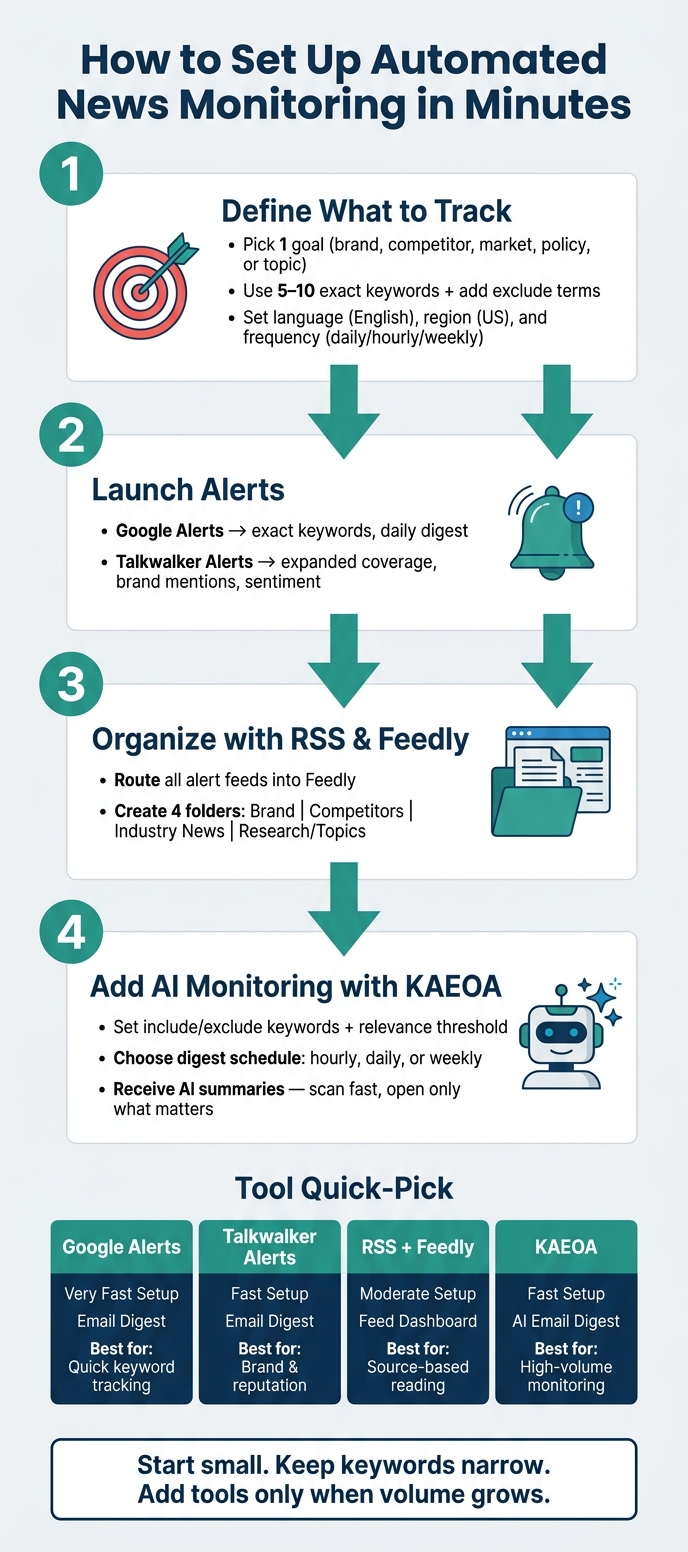
You can build a working news monitoring setup in about 10–15 minutes if you start with one goal, 5–10 keywords, and a small tool stack. The basic flow is simple: set exact terms, filter out junk, route updates into one feed, and get a digest on a schedule you choose.
Here’s the short version:
- Pick one job: brand mentions, competitor tracking, market research, policy news, or topic watching
- Use 5–10 tight keywords: brand names, product names, executive names, and topic terms
- Add exclude terms: this cuts noise fast
- Set filters: English, United States, and a daily, hourly, or weekly send schedule
- Start with alerts: Google Alerts for simple coverage, Talkwalker Alerts for more control
- Pull sources into one place: RSS + Feedly keeps review in one dashboard
- Use AI digests if volume grows: KAEOA can sort results, score relevance, and send short summaries
A small setup like this can cut manual checking by hours per week. And for most teams, daily digests are enough. Hourly only makes sense when the topic moves fast.
If I wanted the simplest setup, I’d do this first:
- Create alerts for exact-match keywords
- Add exclude terms from day one
- Send everything into Feedly folders
- Turn on one AI digest for the noisiest watch
How to Set Up Automated News Monitoring in 4 Simple Steps
How to easily monitor and track news [step-by-step demo]
sbb-itb-15d6cfa
Quick comparison
| Tool | What I use it for | Main output | Best fit |
|---|---|---|---|
| Google Alerts | Exact keyword tracking | Email digest | Fast first step |
| Talkwalker Alerts | More filtering and mention coverage | Email digest | Brand and reputation checks |
| RSS + Feedly | Reading many sources in one place | Feed dashboard | Source-based review |
| KAEOA | AI-sorted monitoring across feeds and pages | Email digest with summaries | Higher-volume tracking |
Bottom line: I’d start small, keep terms narrow, and only add more tools when the alert volume gets too high. That gives you a clean system without wasting time.
1. Define What You Want to Track
Choose Your Monitoring Targets
Start by turning your goal into a short list of exact terms. A broad target like "industry news" tends to flood your inbox with junk. A more precise term like "Nova Post" or "Dream Sock" is much more likely to bring back results you can use.
Put your brand, products, and executives at the top of the list first. Then add competitors and topic areas from your market. Use quotation marks around brand and product names so the alert tool looks for that exact phrase. It also helps to add common misspellings of your brand name, since people often get names wrong when they post online.
Once you lock in the terms, the next move is to choose the source types and filters that keep the alerts useful instead of noisy.
Set Source, Location, and Frequency Rules
Different goals call for different sources. News sites and blogs help you spot current mentions. Community sources can show user feedback and complaints. Research sources tend to go deeper and can help you track analysis and reports.
If your setup is focused on the U.S., set the language filter to English and the region to United States. For delivery, choose daily or hourly alerts based on how fast the topic moves.
With your targets and filters set, you’re ready to launch alerts in Google Alerts and Talkwalker Alerts.
2. Launch Fast Alerts with Google Alerts and Talkwalker Alerts
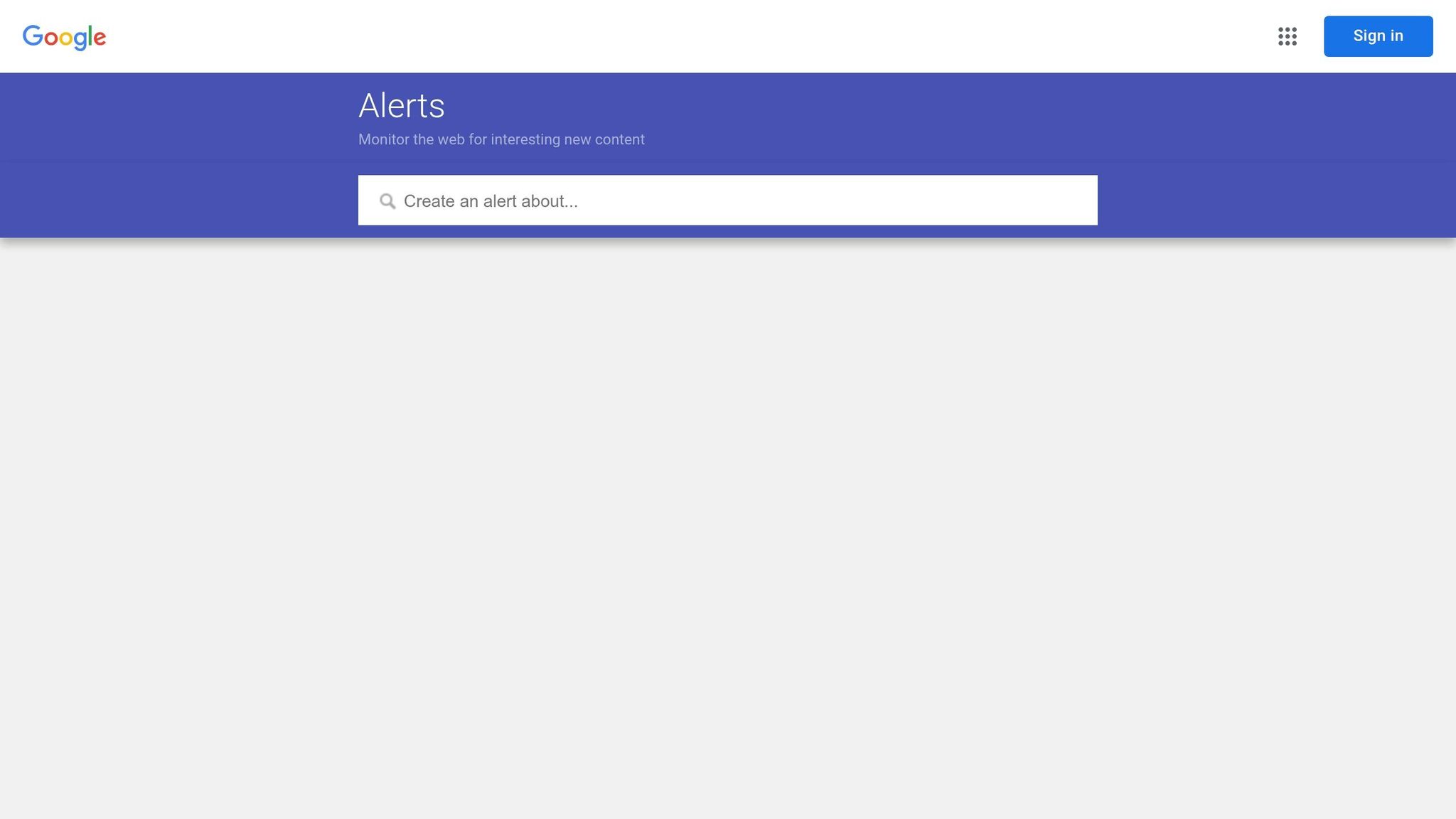
Create Google Alerts for Exact Keywords and Daily Digests
Once your keywords are set, start with the fastest option: Google Alerts. Create alerts for your exact keywords, then send them as a daily digest so you can catch new mentions without checking by hand.
It’s a simple setup, but it saves time right away. Instead of hunting for updates, you let them come to you.
Add Talkwalker Alerts to Expand Coverage
Next, add Talkwalker Alerts to get more coverage and tighter filtering in the same workflow. You can filter out terms you don’t want, narrow by source type, and set location filters so the alerts are more useful and less noisy.
That also gives you a better way to track brand mentions, sentiment, and reviews, which helps you spot reputation problems early.
From here, the next step is organizing these alert streams into RSS and Feedly so everything lands in one place.
3. Organize Everything with RSS and Feedly
Use RSS Feeds as Your Monitoring Backbone
Once your alerts are live, send them into RSS. RSS pulls updates from news sites, blogs, and alert feeds into one reader, so you spend less time jumping between tabs. Instead of checking alerts, news, and blog posts in separate places, you can scan them all in one feed.
Add your alert feeds to Feedly so each source shows up in one dashboard.
Group Sources in Feedly by Brand, Competitors, and Topics
In Feedly, set up four folders based on what you're tracking: brand, competitors, industry, and topics. That simple setup keeps the feed from turning into a mess.
| Folder | What to Put In It |
|---|---|
| Brand | Your company mentions and alert feeds |
| Competitors | Rival newsrooms, press releases, product blogs |
| Industry News | Analyst reports, sector updates, regulatory news |
| Research/Topics | Niche labs, watchlists, emerging issues |
For the Competitors folder, begin with the press release pages of your direct rivals. Those pages often show launches, leadership changes, and positioning updates before those stories spread to other channels.
Think of this dashboard as your review layer before you add AI-powered relevance filters and digests.
4. Set Up AI-Powered Monitoring with KAEOA
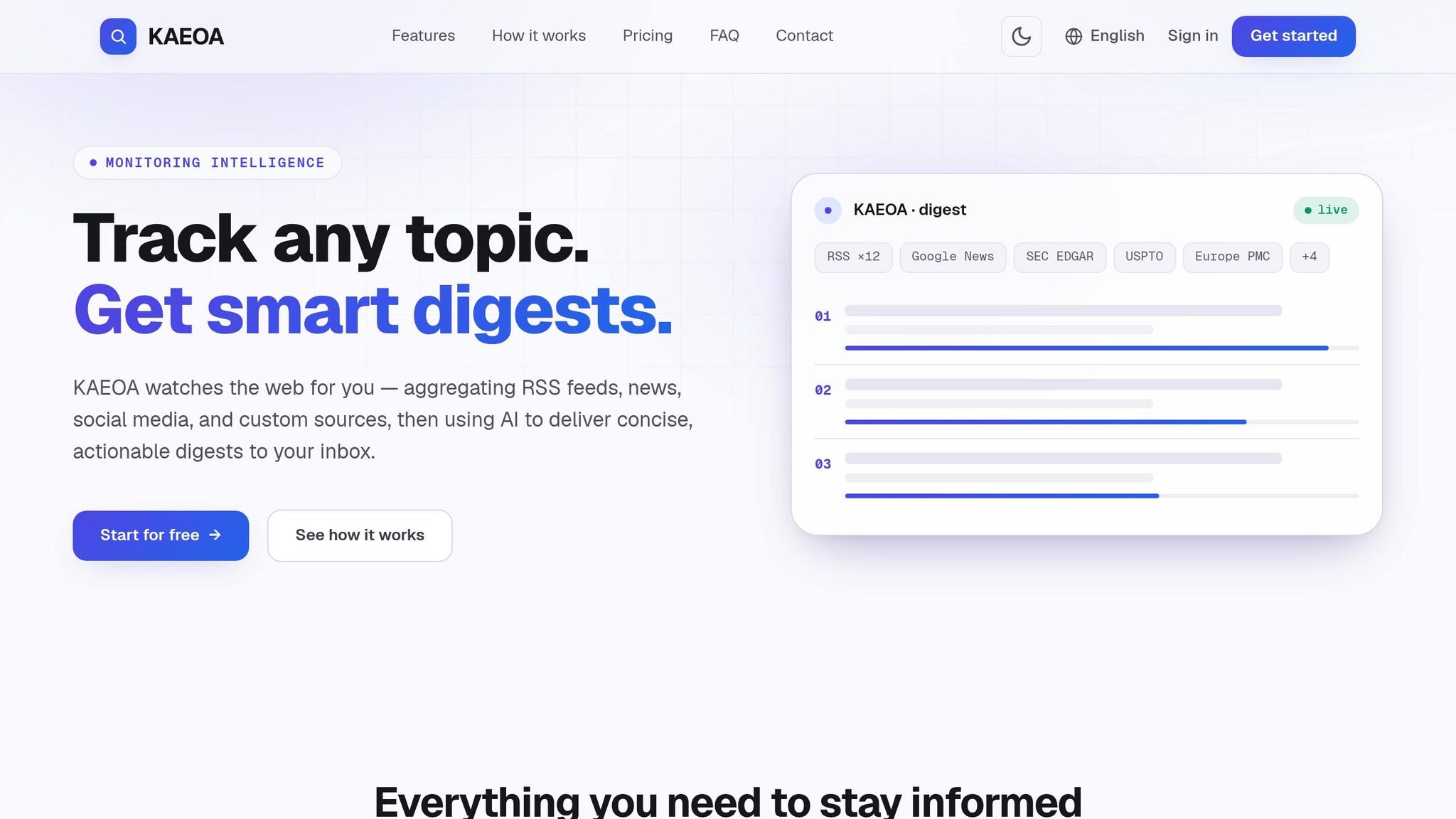
Once your keywords and feeds are in place, use KAEOA to turn them into one focused digest.
Create a Watch with Include, Exclude, and Relevance Filters
A watch is one tracking rule in KAEOA. Each watch covers one monitoring goal across source types: news, social, research, RSS, and custom pages.
When you set up a watch, add include keywords to narrow in on what you want to see and exclude keywords to cut out noise. You can switch between exact matching for precise terms and broader matching for looser phrasing. Then set a relevance threshold to screen out lower-priority results before they hit your digest.
Pick a Digest Schedule and Skim Faster
Choose hourly, daily, or weekly delivery based on how urgent the topic is. KAEOA doesn’t just send a raw pile of links. It sends short AI-generated summaries with each result, so you can scan the summaries first and open only the items that matter.
Match Your Plan to Your Monitoring Volume
The Free plan starts at $0/month and includes 2 watches, daily digests, and core sources. That’s enough to get a brand watch and a competitor watch running.
If you need more coverage, the Pro plan is $25/month. It includes 5 watches, faster digest frequency of up to every 6 hours, advanced sources, and 5 custom sources per watch.
For teams with heavier monitoring needs, the Business plan costs $79/month. It includes up to hourly digests, all sources, and unlimited custom sources.
Start free, then move up only when your monitoring volume calls for it. Pick the smallest plan that covers your first watch, and add more only as your load grows.
5. Pick a Starting Stack and Keep It Simple
Compare Setup Speed, Coverage, and Filtering by Tool
Once you’ve picked your targets and filters, the next step is simple: choose the lightest setup that still does the job.
| Tool | Setup Speed | Coverage | Filters | Output | Best use case |
|---|---|---|---|---|---|
| Google Alerts | Very fast | Google-indexed pages | Exact keywords, language, region | Email digest | Quick brand or keyword tracking |
| Talkwalker Alerts | Fast | Web and social mentions | Keywords, language | Email digest | Widening coverage beyond Google |
| RSS + Feedly | Moderate | Selected publisher RSS feeds | Source grouping by brand, competitor, or topic | Feed reader | Organized reading by topic or source |
| KAEOA | Fast | News, social, research sites, RSS, and custom web pages | Include/exclude keywords, exact or semantic matching, country and language filters, relevance scoring | Email digest with AI summaries | Structured monitoring with less manual review |
This table helps you pick the simplest stack that still covers what you need.
Start with One Simple Workflow
Start small. That’s usually the move that saves the most time.
Use alerts if you want fast notice for one brand or competitor. Use RSS and Feedly if you track a short list of publications by source or topic. Use KAEOA when you’re watching several targets and need tighter filters plus AI summaries to cut down review time.
A good rule of thumb: set the base before you add more. Pick your targets first, keep keywords narrow, and add exclusions from day one. Then let the setup run long enough to show you what’s missing.
After that, tweak only the alerts that create noise. No need to rebuild the whole system if only one part is messy.
FAQs
How do I choose the right keywords?
Choose keywords that line up with your goals. That usually means your brand name, top competitors, industry terms, and your main product or service categories. It also helps to include the words your audience uses when they talk about these topics.
Use a mix of broad terms for industry tracking and more specific phrases for direct mentions. Then fine-tune that keyword set over time so your email digests stay useful and relevant for competitive intelligence and reputation tracking.
When should I use daily vs. hourly digests?
Use hourly digests for updates that are time-sensitive and may call for a fast response. This works well for things like competitive intelligence, reputation tracking, and breaking news.
Use daily digests for broader monitoring over time, such as industry trends, market research, or topic watchlists, when a summary is more helpful than constant alerts.
How do I reduce noisy or irrelevant alerts?
Use relevance filters and tighter keyword settings in your monitoring tools. Boolean operators and specific search queries can narrow what you track, so updates stay centered on your core interests.
You can also switch from instant alerts to email digests. That way, you get the main takeaways without a constant stream of pings. It also helps to review your sources and keywords on a regular basis, so your alerts stay useful for reputation tracking and market research.