Market Intelligence
How to Monitor a Website That Has No RSS Feed
How to Monitor a Website That Has No RSS Feed
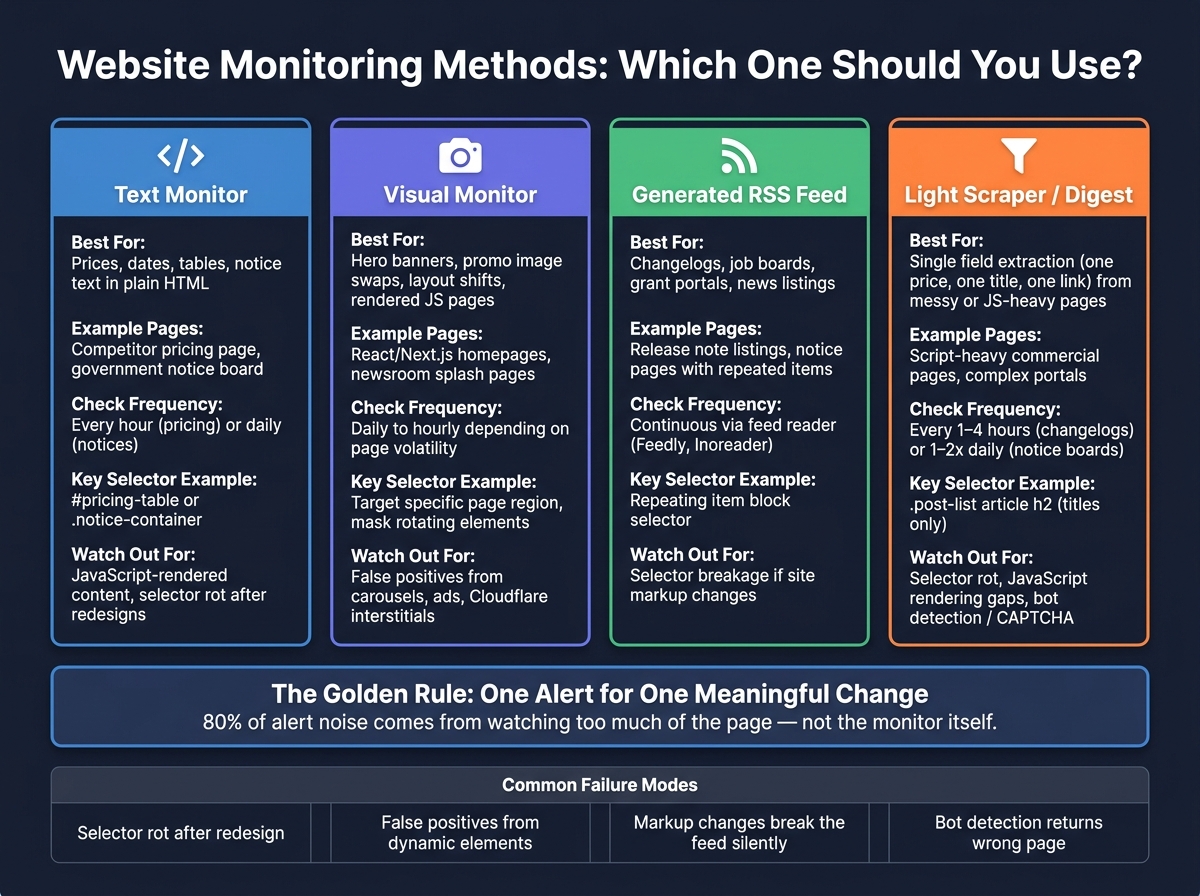
No RSS feed is not the problem. Picking the wrong monitor is. If the update shows up in page text, watch the HTML. If the page changes through images or layout, use screenshots. If the page is a list of repeated items, turn it into a feed. If none of that can isolate the field you need, scrape just that field and send a digest.
Most teams do not need a crawler. They need one alert for one change that matters. A price move from $49 to $59, a new newsroom post, a changed filing deadline, or a swapped homepage banner. In many setups, 80% of alert noise comes from watching too much of the page, not from the monitor itself.
Use this rule set:
- Text monitor for prices, dates, tables, and notice text already in HTML
- Visual monitor for hero banners, promos, image swaps, and layout shifts
- Generated RSS feed for changelogs, news listings, job posts, and grant portals
- Light scraper or digest for one field on messy or script-heavy pages
A bad setup usually fails in boring ways: selectors break, JavaScript hides the target, or bot checks return the wrong page. Good monitoring starts small, checks the raw output, and ignores everything outside the target block.
A useful setup is cheap, narrow, and a little boring. That is usually the one that lasts.
Website Monitoring Methods: Which One Should You Use?
ChangeDetection: Free Open Source Website Monitoring and Alert Tool
sbb-itb-15d6cfa
Use page-change detection when the update is already visible on the page
Use this method when the thing you care about already appears in the page’s HTML. A page-change monitor compares each check against the last saved snapshot and sends an alert when something changes. It fits pages where the target text is present at load time: prices, status labels, table rows, notice text, or version numbers. If the page builds that content with JavaScript after load, a plain HTML monitor often misses it, so use a browser-based monitor instead.
Most tools ask for the same four inputs: the URL, the part of the page to watch, how often to check it, and where alerts should go. Watching the full page makes sense only when any edit matters. In most cases, that’s too broad. For a SaaS pricing page, a government portal, or a small status badge, element-level monitoring keeps the signal clean by focusing on the exact block that matters.
Narrow the watch to the right section so noise does not trigger false alerts
False alerts usually come from everything around the target content. Navigation menus change, promo banners rotate, chat widgets refresh, and timestamps tick forward even when the actual content stays the same. That noise burns time fast.
The fix is simple: limit the monitor to the smallest useful block with a CSS selector or XPath. A selector like #pricing-table or .notice-container tells the tool to watch only that section and ignore the rest of the page. Most monitoring tools also give you a point-and-click picker, which is fine for setup, but it still helps to inspect the selector it generates. Auto-picked selectors sometimes grab a wrapper that changes more often than the content inside it.
Run a manual check before trusting the monitor. Make sure it captures the target content and not an empty container, a login wall, a consent screen, or a blocked response. This step sounds small, but it saves a lot of grief. A monitor that checks the wrong element can look “healthy” while telling you nothing useful.
Give new monitors a few days of observation before you rely on them. If alerts fire because of noise, tighten the selector or add an ignore rule for the problem element. Many tools support exclusions for items like timestamps, dynamic badges, or rotating promos. For pages that rarely change, daily checks are usually enough. For pricing pages or fast-moving status pages, hourly or 15-minute checks make more sense.
One trade-off matters here: narrower selectors cut noise, but they can also miss a change if the site redesigns the markup. If #pricing-table becomes .pricing-grid, your monitor may stop seeing the target even though the page still loads fine. That’s the downside of precision. It works well until the structure shifts.
Example: watch a competitor pricing page and a government notice page
Two setups show the pattern clearly.
For a competitor pricing page, watch the pricing table element, not the whole page. That usually means a selector such as #pricing-table or .plan-card. Set checks to run every hour and send alerts by email. On this kind of page, a useful alert is a changed plan name, a price update in U.S. dollars, or a new tier added to the table. A hero image swap or a footer copyright date change is just noise.
For a government notice page, many public-sector sites publish plain HTML tables for notice text, grant deadlines, or eligibility rules. In that case, target the specific <table> or the table body and run the check once a day. A useful alert is revised eligibility wording, a changed deadline, or a new row added to the table. These pages often stay stable for long stretches, so daily checks are enough and usually cost less.
The setup difference comes down to pace. A pricing page can change midweek and affect a sales call the same day. A notice page usually moves slower, and checking too often just adds churn without much gain. Same method, different timing.
A simple comparison helps:
| Page type | Best target | Check frequency | Useful alert | Noise to ignore |
|---|---|---|---|---|
| Competitor pricing page | #pricing-table, .plan-card |
Every hour | New tier, changed plan name, price revision in U.S. dollars | Hero image, footer year, nav changes |
| Government notice page | <table>, tbody, notice container |
Daily | New row, revised deadline, eligibility text change | Banner rotation, widget refresh, timestamp drift |
That pattern holds up across tools. Pick the smallest region that contains the change you care about, match the check schedule to how fast that change matters, and review the first alerts before you trust the setup. If a tool keeps firing on irrelevant edits, the problem usually isn’t the idea of page-change detection. It’s the scope.
Some teams run this through tools such as Visualping, Distill.io, Wachete, or ChangeDetection.io. KAEOA can fit into the same workflow when the page structure is clear and the target block is easy to isolate. The tool matters less than the setup. A sloppy selector on a good platform still gives sloppy alerts.
This method also has limits. It does not handle pages well when the target appears only after user interaction, sits behind a login, or loads through client-side JavaScript after the first HTML response. It also struggles with repeating lists when items move around often, because a small layout shift can trigger an alert even if nothing important changed. When the change is mostly visual, or when you need to track repeated items inside a feed-like list, the next method usually works better.
Switch to visual checks or a generated feed when text alerts fall short
Text alerts break down when the page you care about is mostly rendered in the browser or when the site keeps adding near-identical items to a list. In those cases, stop forcing a text diff to do a job it’s bad at. Use a browser-based visual check for rendered pages, or turn repeated listings into a feed you can subscribe to.
Use visual monitoring for rendered pages, layout shifts, and homepage updates
Visual monitoring loads the page in a browser first, then compares screenshots over time. That matters on pages built with React, Next.js, and other JavaScript-heavy stacks, where a plain text monitor may only catch the bare HTML shell before the page finishes rendering. If the live page changes in layout, images, banners, or client-side blocks, a screenshot diff usually catches it.
This method works best when appearance itself matters. A newsroom hero image swap, a changed callout on a homepage, or a moved pricing card may not show up cleanly in a text alert, but it will show up in a rendered comparison. That makes visual checks a better fit for pages where the user-facing result matters more than the raw source.
There’s a trade-off, and it’s not small. Screenshot checks can throw false positives when the page contains moving parts like carousels, rotating promos, timestamps, cookie banners, or ad slots. The fix is practical: limit the monitor to the exact region that matters, and mask any part of the page that changes on its own. If a page shifts all day, check it more often and expect more noise; if it stays mostly fixed, a daily run is usually enough.
Bot defense can also get in the way. If the monitor hits an interstitial instead of the page itself, the screenshot may show a challenge page rather than the real content. Cloudflare is the common example here, and when that happens the monitor can report the wrong result because it never saw the target page at all.[4]
If the monitor gets stuck on an interstitial like a Cloudflare challenge, it may capture the challenge page instead of the real content and report a false negative. [4]
So the rule is pretty simple: use visual monitoring when rendered output is the thing you care about, not just the source text.
Generate a custom RSS feed for pages that publish repeated items
A generic change alert is clumsy on pages that act like streams. Job boards, grant portals, release-note listings, and notice pages often publish one new item at a time, but a normal monitor treats the whole page as one blob. A generated RSS feed does a much better job because it turns each repeated block into its own item, then sends those items into a reader like Feedly or Inoreader.
The workflow is direct. Paste the listing page URL into a feed-generation tool, use the visual selector to mark the repeating item block, and publish the feed URL. After that, the page behaves more like a normal syndication source than a generic page-diff target, which makes review cleaner and cuts down on “something changed somewhere on this page” alerts.
This is where a feed beats a visual alert by a mile. If a grant portal adds five new postings over two days, the feed can surface each posting as a separate entry. A screenshot monitor, by contrast, only tells you the page looked different. That may be enough for a homepage banner, but it’s a poor fit for repeated listings where the unit of change is the individual item.
The weak point is selector breakage. Feed generators depend on the page structure staying close enough to what the tool first learned. If the site changes its markup, renames classes, nests cards differently, or rebuilds the listing template, the selector can fail and the feed can go quiet without much warning. That’s the tax you pay for cleaner item-level updates.
The split usually looks like this:
| Page type | Better method | Why |
|---|---|---|
| React/Next.js homepage | Visual monitoring | Text monitors may only see the initial HTML shell before JavaScript renders the page |
| Newsroom splash or hero section | Visual monitoring | Catches image swaps and layout shifts that text diffs miss |
| Changelog or notice listing | Generated RSS feed | Delivers each new item cleanly to an RSS reader |
| Job board or grant portal | Generated RSS feed | Turns repeated list items into a subscribable stream |
If a visual check still catches too much noise, and a generated feed can’t survive the site structure, that usually means the page needs tighter extraction logic. At that point, move to a simple scraper rather than keep tuning a tool that doesn’t fit. KAEOA treats that as the line between monitoring a page and parsing a source.
Build a simple scraper or digest workflow when you need more control
When page-change alerts keep firing on junk, pull only the field that matters and ship that as a digest. This works best when you care about one price, one row in a table, one title, or one link, not a full-page diff with every banner, footer date, and ad slot mixed in.
Start with 4 moving parts: URL, selector, schedule, and destination
A scraper workflow has four parts: URL, selector, schedule, and destination. Keep each part narrow. The tighter the setup, the less noise you deal with later.
Start with the exact page that changes, not the homepage. A /changelog, /pricing, or /notices page usually gives you a cleaner signal than a company’s front door. Homepages tend to change for reasons that don’t matter: promos rotate, hero images swap, cookie notices reappear, and footer text shifts.
The selector is where most of the signal quality comes from. Point it at the changing field only. If .post-list article h2 gets the titles you want, use that instead of grabbing the whole document. That small choice helps you ignore cookie banners, rotating ads, and timestamps in the footer that would otherwise trigger noise.
Schedule matters more than people think. Match the check rate to the source’s update pattern: every 1 to 4 hours for a competitor changelog, and once or twice a day for a government notice board [1][2]. Checking every 5 minutes feels safe, but it usually burns quota and does not get news much sooner. If the source posts once every afternoon, an hourly job is often enough.
For delivery, use email when you just need a plain digest in an inbox. Use a webhook when another system needs to take over, like a Slack post, a Google Sheet row, or a ticket in Jira. If you want a light no-code route, Zapier or Make can receive the webhook and pass the data along without much setup.
A hosted scraper can also take care of browser rendering, proxies, and scheduling. That matters when the target page is not plain HTML or when the site gets picky about traffic. KAEOA fits well here when the goal is a monitored feed, not a one-off extraction job.
Know the failure modes before you rely on a scraper
Before you depend on a scraper, know how it usually fails. Most breakages are boring, and that’s good news because boring failures are easier to spot and fix.
The three common ones are selector rot, JavaScript rendering, and bot detection [2][3][5]. Selector rot is the usual culprit. A site redesign changes the HTML structure, the CSS path no longer points to the right node, and the scraper starts returning nothing.
JavaScript rendering is the next trap. A plain HTTP request to a React or Vue page can come back with little more than an empty shell, because the data shows up only after the browser runs the app. If your output is blank even though the page looks fine in Chrome, this is often the reason.
Bot detection is less common on plain notice boards and changelogs, but it shows up fast on commercial sites. Instead of the page content, the scraper gets a challenge page, a CAPTCHA, or a “verify you are human” screen. At that point, the workflow is still “working” in a narrow sense, but it is pulling the wrong page.
The practical fix is simple: verify the setup right after you build it [3]. Run one manual test and inspect the raw output. Make sure you see the fields you meant to collect, not an empty result, a login wall, or a challenge page. If updates stop later, check the selector first before assuming the source has gone quiet.
| Failure mode | What happens | Fix |
|---|---|---|
| Selector rot | A redesign breaks the CSS path and the scraper returns nothing | Re-inspect the page and update the selector |
| JavaScript rendering issues | A plain request returns an empty HTML shell | Switch to a tool that renders the page in a browser |
| Bot detection | The scraper sees a challenge page, not the content | Use a cloud tool that can work with proxies |
| Daily digest latency | The update arrives hours after the change | Increase check frequency for time-sensitive pages |
One more limit is worth stating plainly: a scraper is not “set and forget.” Even a clean setup needs occasional checks, because the target site controls the markup, not you. If the page changes often, the maintenance cost can beat the value of the feed.
That trade-off is why narrow targets work best. If you only need a single field or link, a small selector is easier to keep alive than a full-page parsing setup. For simple monitoring, that often beats a giant diff full of noise, and it keeps the handoff clean whether the destination is email, Zapier, Make, or a webhook endpoint handled by KAEOA.
Conclusion: Pick the cheapest setup that reliably catches the change you care about
Start with the page itself, not the tool. If the page changes in plain text, use text-change detection. If the thing that matters is visual, like a hero banner, a price block moving, or a layout shift that breaks trust, use visual monitoring. If the page is mostly a repeating feed of items, a generated RSS feed often gives you the cleanest result. Save scrapers for cases where you need field-level control, such as pulling product price, stock status, author name, or publish date into separate fields.
That choice matters because the wrong setup creates junk alerts. A visual checker on a text-heavy page can flag tiny rendering shifts that mean nothing. A text diff on a promo-heavy landing page can miss the one thing you care about if the useful signal is mostly positional. Cheap monitoring stays cheap only when the method matches the page.
The target is simple: one alert for one meaningful change. Not every DOM edit. Not every timestamp refresh. Not every ad rotation. If the page changes ten times a day but only one of those changes affects a decision, your setup should fire once, not ten times. Otherwise the alert stream turns into wallpaper, and missed signals become your fault, not the tool’s.
Noise control comes before scale. Start with one page that matters, then tune it for a week. Tighten the selector, exclude junk text, ignore cookie banners, and strip parts of the page that change on every load. If the alert still reads clean after several normal page updates, add the next page. If it doesn’t, more pages just multiply the mess.
A free tier is usually enough to prove the setup. Use that first. Pay only when you hit a real limit, like more tracked pages, shorter check intervals, API access, or team notifications. KAEOA fits best after that point, when you already know what signal you want and need a cleaner way to run it at scale without babysitting every monitor.
There’s a limit here, and it’s worth saying out loud: no setup is perfect on pages loaded heavily with JavaScript, A/B tests, geo-based content, or anti-bot controls. Some pages will still need retries, looser schedules, or a scraper with custom rules. That’s normal. The win is not perfect coverage of every page on the internet. The win is a cheap setup that catches the change you care about, reliably, without burying you in junk.
FAQs
How do I choose between text, visual, RSS, and scraping?
Pick the method based on two things: what the site gives you and what kind of change matters.
Use RSS for blogs, news sites, and product changelogs that already publish a feed. It’s the cleanest option because the site is doing the structuring for you. If all you care about is “new post published” or “new release added,” RSS is usually enough.
Use text monitoring or element monitoring when the target is a specific field on the page. That works well for things like a price, a stock count, a job title, a release date, or a status label. If the page changes in other places, you can ignore that noise and watch only the part that matters.
Use visual monitoring when the change that matters is the page itself: layout shifts, banner swaps, button changes, missing blocks, or design edits. This is useful when the page can change without much text changing at all. A text-based check can miss that kind of update.
Use scraping when there’s no clean feed and you need tighter control over what gets pulled. That matters on messy pages, pages with repeated fields, and pages that render content with JavaScript after load. Scraping gives more control, but it also takes more setup and breaks more often when the site changes its HTML.
KAEOA usually treats this as a trade-off between simplicity and control. RSS is low-friction. Element checks are precise. Visual checks catch design drift. Scraping handles the hard cases, especially on JavaScript-heavy pages, but it asks for more maintenance.
What should I do if my monitor keeps sending false alerts?
Stop watching the whole page. Target the part that matters.
Use CSS selectors so the monitor checks only the exact elements tied to the signal you want: a price block, an inventory message, a job title, a court filing row, a changelog entry. If the page has ten moving parts and only one matters, broad page checks waste time and create noise.
A selector-based setup usually looks like this:
.price#availability.job-listing h2table filings tbody tr:first-child
That small change cuts a lot of false alerts. You stop treating the page like one giant blob and start treating it like a set of parts with different behavior.
Then strip out the junk you already know will change. Timestamps update. Ads rotate. cookie notices appear and disappear. “Recommended for you” modules shuffle content on their own. None of that helps if you’re tracking a policy update or a product restock. Exclude those elements before you run comparisons.
If the tool supports ignore rules, use them on things like:
.timestamp.ad, .ads, [id*="ad-"]#cookie-banner, .cookie-notice.recommended, .related-posts
This matters even more on news sites, ecommerce pages, and SaaS dashboards, where small layout churn happens all day. A clean watch target beats trying to explain away noisy alerts after the fact.
Change thresholds help when the page shifts a little but not in a way that deserves a notification. If one word changes in a 2,000-word block, maybe that matters. If a tiny spacing tweak or one rotating label changes, maybe it doesn’t. Set a minimum percentage or character-delta threshold so minor edits stay quiet.
Keyword filters add another layer. If you only care when terms like "out of stock", "pricing", "available", or "deprecated" appear or disappear, filter for those words. That turns a generic page monitor into a much tighter signal. It also helps when the watched element contains a lot of text but only a few phrases carry meaning.
JavaScript loading is another common failure point. Many pages ship an empty shell first, then fill in the content after scripts run. If you check too early, you monitor the placeholder, not the page people actually see. Wait for full render, or set a delay long enough for the target element to load before the snapshot happens.
A simple rule works well: if the content appears late in a browser, assume the monitor also needs extra wait time. In Chrome DevTools, inspect the element and confirm whether it exists in the initial HTML or gets injected after page load. That one check saves a lot of head-scratching.
Some elements change by design and should be blocked outright. Carousels, live counters, “people viewing now” badges, countdown timers, and auto-rotating hero banners are classic examples. They create churn with zero signal. If they sit inside your watched container, exclude them or move your selector down to a calmer child element.
A practical setup often looks like this:
| Goal | What to watch | What to ignore |
|---|---|---|
| Product restock | #availability |
.timestamp, .recommendations |
| Price tracking | .product-price |
.promo-banner, .ads |
| Docs update | article .content |
nav, footer, .last-updated |
This approach has limits. Some sites use unstable class names that change on each deploy, especially pages built with CSS-in-JS or heavy frontend frameworks. In those cases, a selector like .price___a8f3z won’t last long. You may need more stable hooks such as data-* attributes, text-based matching, XPath, or a parent-child selector with fewer moving parts.
Another trade-off: filtering too hard can hide a change you later care about. If a site moves the price from .product-price to a new component, your monitor may go quiet instead of alerting. Check selector health once in a while, especially after a site redesign.
For teams running this at scale, KAEOA usually gets better results when each monitor has a narrow target, a short ignore list, and one clear reason to exist. “Watch the whole page and hope the noise stays low” sounds easy, but it breaks fast on modern sites.
The better pattern is simple: watch less, but watch the right thing. That means precise selectors, known-noise exclusions, sensible thresholds, keyword rules where they help, enough render time for JavaScript, and hard blocks on self-updating elements.
Can I monitor JavaScript-heavy or bot-protected pages cheaply?
Yes. Use a website change monitoring tool that loads the page in a real browser, not a plain HTML request.
That matters because many pages don’t send the full content on the first response. JavaScript fills in prices, stock status, comments, or account data after the page loads. A basic fetch often misses that, so you either get no alert at all or a pile of bad alerts from half-rendered pages.
For bot-protected or login-gated pages, some tools can replay browser actions such as clicks, sign-ins, cookie prompts, or modal dismissals. That’s often the only way to reach the part of the page that actually changes. Even then, there are limits: if a site rotates anti-bot checks, uses CAPTCHA, or blocks automated sessions hard, monitoring may break without warning.
On dynamic pages, monitor a specific CSS selector or a tight page region instead of the whole page. That cuts down noise from rotating banners, timestamps, ad slots, or recommendation widgets. For example, watching div.price or #inventory-status usually works better than tracking the entire body.
A real browser helps, but it doesn’t fix sloppy setup. If the target element moves around, changes class names, or loads late, alerts still get messy. Set a wait condition when the tool supports it, and test the selector against a few page loads before trusting it.
Always check the site’s terms of service before trying to get around protections. If access requires a paid account, signed-in session, or strict anti-bot controls, pushing past those rules can create legal and account risk fast.