Productivity
7 Ways to Cut Information Overload at Work
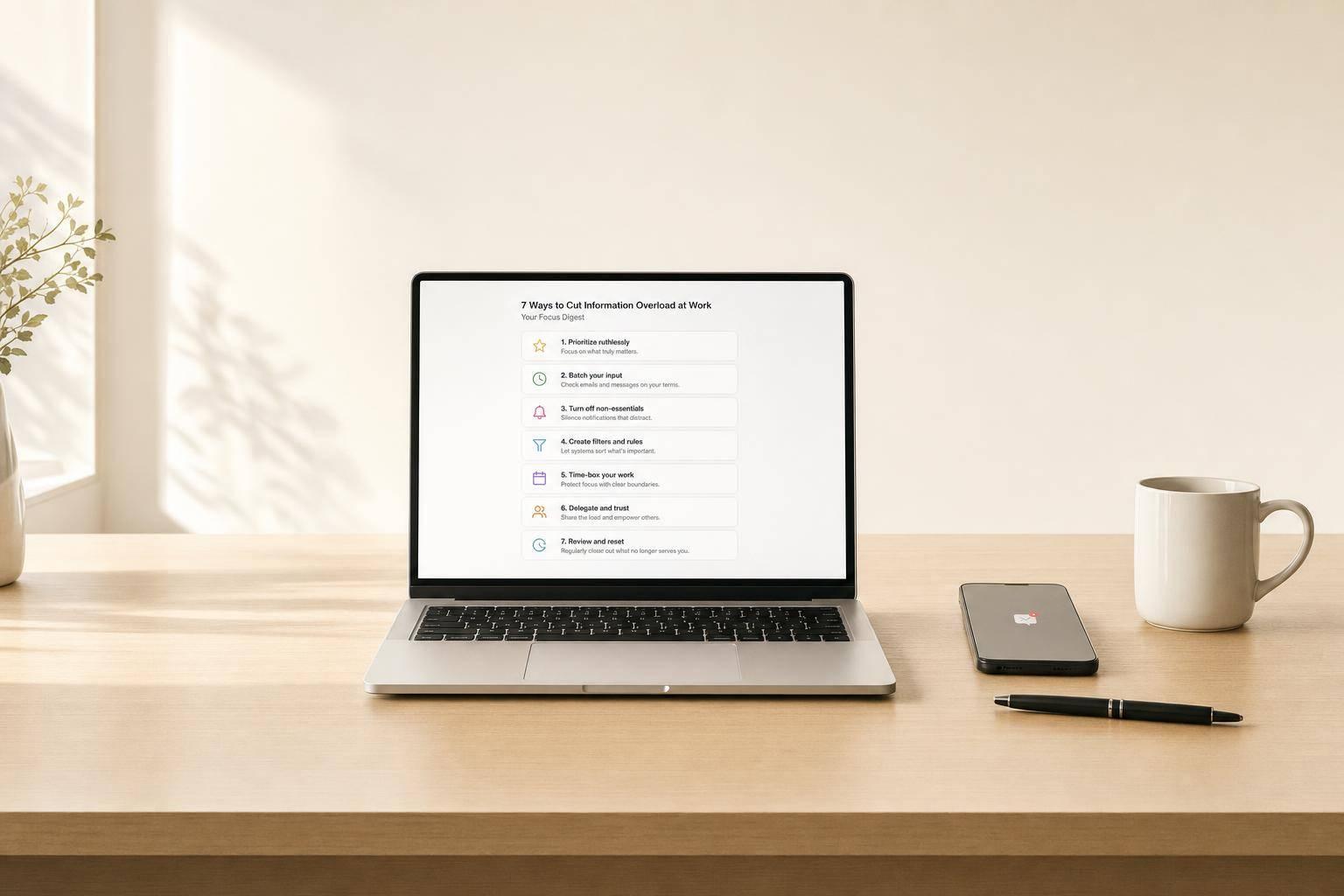
7 Ways to Cut Information Overload at Work
Information overload at work is usually a system problem, not a personal failure. If I want to cut the noise, I need to do seven things: put sources in one place, narrow topics, sort by relevance, swap many alerts for digests, mute low-value pings, set priority tiers, and review updates in fixed time blocks.
Here’s the short version:
- Use one dashboard instead of checking many apps
- Track specific topics so junk stays out
- Sort results by relevance so top items show first
- Use scheduled digests for most updates
- Filter email and mute low-value channels
- Set clear priority tiers for feeds and messages
- Review in batches, not all day
The article also points to a simple habit I can start this week: set a 10-minute timer, open each item once, then reply, file, or delete it.
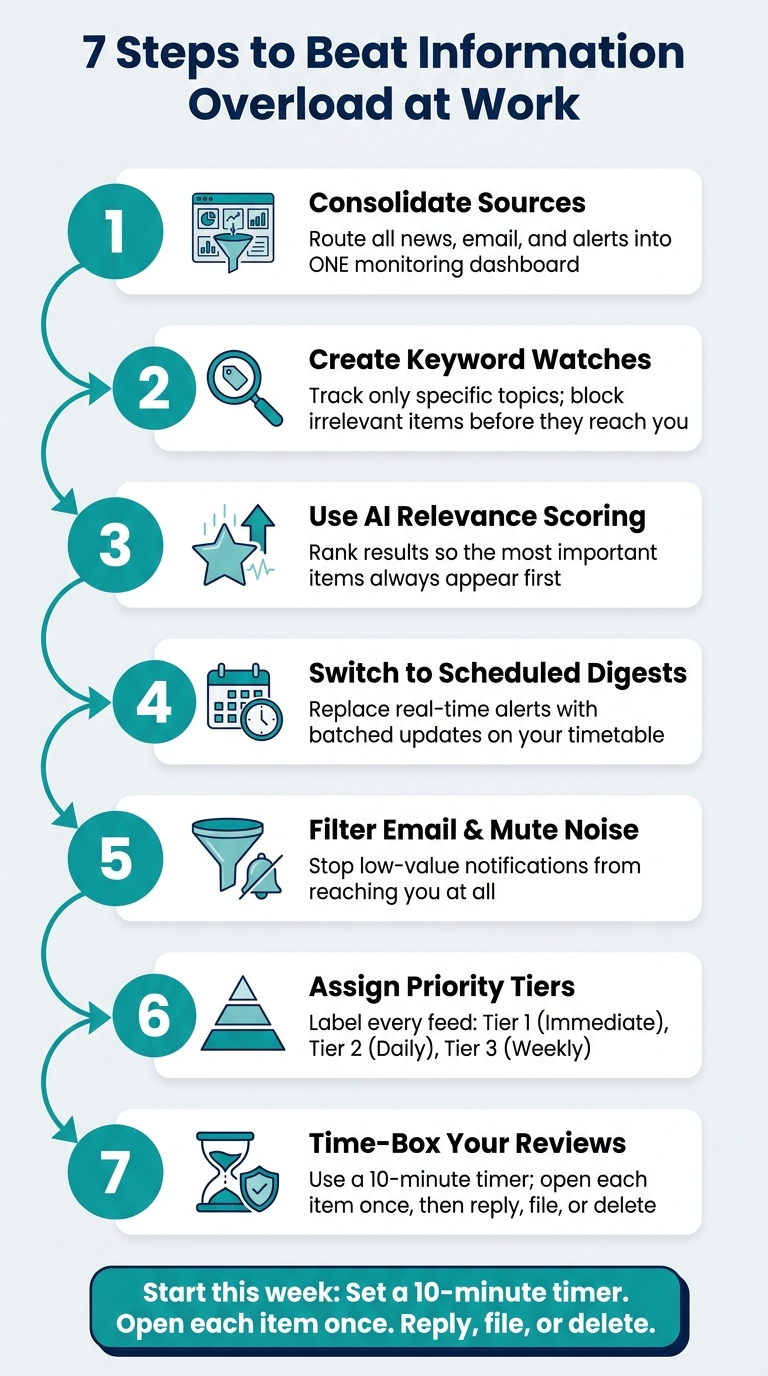
7 Steps to Beat Information Overload at Work
Quick Comparison
| Tactic | Main goal | Best result |
|---|---|---|
| One dashboard | Cut app switching | Less time spent hunting for updates |
| Topic watches | Remove noise | Fewer off-topic items |
| Relevance sorting | Put top items first | Shorter review queue |
| Scheduled digests | Cut interruptions | Better focus during work |
| Filters and muted alerts | Block low-value input | Cleaner inbox and chat tools |
| Priority tiers | Match review speed to risk | Less over-checking |
| Time-boxed review | Batch information work | Lower context switching |
If I keep the flow of information under control, I spend less time sorting and more time acting.
sbb-itb-15d6cfa
What Good Information Control Looks Like
Good information control isn’t about reading less. It’s about reading the right things.
When you’re dealing with news, email, alerts, feeds, and internal updates, overload usually comes from too many inputs hitting you in too many places. A solid system cuts that mess down. Four traits shape that kind of setup, and you’ll see them show up in the seven tactics below.
Fewer places to check. Every inbox, feed, or channel gives you one more place to look. That adds search time and mental drag. A strong setup pulls your most important sources into one place. That’s the whole point of putting sources into a single dashboard.
Clearer topic definitions. If your topic is fuzzy, your results will be noisy. When you spell out exactly what you want to track - specific keywords, industries, or named sources - you block irrelevant items before they ever reach you.
Fewer interruptions. Not every alert deserves your attention right now. The only things that should interrupt you are the ones that need immediate action. Everything else can wait for a planned review.
Scheduled review windows. Instead of checking updates all day, process them once during a set window and then get back to your work.
This is where tools start to matter. RSS readers pull news and blog feeds into one stream. Outlook and Gmail filters send messages to set folders without manual sorting. Slack and Microsoft Teams let you mute low-value channels and decide which mentions should trigger a ping. AI-powered monitoring platforms like KAEOA track topics across news, RSS feeds, communities, and the open web, then score results by relevance and send a prioritized email digest on your schedule. When the right sources, filters, and digests work together, these traits stop being ideas and start becoming habits.
| Trait | Why It Matters | Tools That Help |
|---|---|---|
| Fewer Places to Check | Cuts search time and context switching | RSS readers, unified dashboards |
| Clearer Topic Definitions | Reduces noise and surfaces relevant content | KAEOA watches, keyword filters |
| Fewer Interruptions | Protects focus during deep work | Slack/Teams notification settings |
| Scheduled Review Windows | Speeds up processing and reduces backlog | Outlook/Gmail filters, timers |
With that structure in place, the next steps become much easier to use.
1. Consolidate Sources Into One Monitoring Dashboard
Start by routing news, email, alerts, and internal updates into one dashboard instead of bouncing between separate tools.
Bring in only the sources that matter for your role: external news, internal project updates, customer feedback, and critical security and communication alerts. Then set rules to hide routine items so the dashboard stays easy to scan. Suppress informational status updates so only the items that matter rise to the top [4].
Check the dashboard once a day for 10 minutes. KAEOA can pull together news, RSS feeds, communities, and custom web pages into a single view. Once that view is clean, define the keywords and topics that should flow into it.
2. Create Targeted Keyword and Topic Watches
Once your sources are in one place, the next job is simple: decide what should make it through. With the dashboard set up, create watches that pull in ONLY the topics you care about. Broad keywords tend to flood the feed with junk. More specific watches help keep things on track.
It also helps to rank topics by priority. Not every topic needs the same level of attention, and tying keywords to priority levels makes the workflow easier to manage.
| Priority Level | Keyword Category | Workflow Action |
|---|---|---|
| Urgent | Security or PR risks | Immediate escalation |
| High priority | Competitor moves (product launches) | Same-day review / executive briefing |
| Medium priority | Executive mentions / brand sentiment | Daily scheduled digest |
| Low priority | General industry trends / brand terms | Weekly review / monitoring dashboard |
Don’t stop at keywords alone. Filter by attributes like language, content type, and recency so you surface the updates that matter most [5].
In KAEOA, each watch can include up to 20 included and excluded keywords. You can use exact or semantic matching, plus an AI relevance threshold that pushes weaker matches lower. When the watch rules are tight, relevance scoring can bring the strongest matches to the top first.
3. Use AI Relevance Scoring to Rank What Matters
Keyword watches help cut down the list. AI relevance scoring then sorts what’s left so the best matches show up first. That makes the review queue shorter and much easier to scan.
Use signals like freshness, content type, and workflow status to sort results. Then push stale or low-value items farther down the list.
| Signal Type | What It Tracks | Why It Helps |
|---|---|---|
| Temporal | Created, updated, last modified | Brings fresh content to the top and pushes stale results down |
| Volume / effort | Estimated review effort | Helps you judge how much time an item may take |
| Categorization | Document type | Splits primary documents from secondary content or system assets |
| Contextual | Primary vs. supporting content, source language | Shows whether content is core material or supporting context |
| Workflow status | Error, complete, in progress | Marks items that need attention right away |
You can also adjust the relevance threshold to narrow or broaden coverage. With ranked results, scheduled digests become faster to scan.
4. Switch from Real-Time Alerts to Scheduled Digests
Once relevance scoring sorts the feed, the next thing to control is when those updates reach you.
Real-time alerts can wreck your focus fast. Scheduled digests work better because they let you review updates on your timetable, not the system’s. You still keep steady coverage, but you’re not getting pulled away every few minutes.
Use severity to decide which items should skip the digest. Instant alerts should be saved for the few cases that need attention right away.
| Severity | Delivery Format | Description / Example |
|---|---|---|
| Emergency / Alert | Instant alert | System is unusable or immediate action is required to prevent failure |
| Critical / Error | Instant alert | Conditions that require urgent attention or indicate a process failure |
| Warning | Digest | Potential issues that are not yet failures but require monitoring |
| Notice / Info | Digest | Normal but significant events or general status updates |
| Debug | Optional/logs | Low-level information used only for deep-dive troubleshooting |
Time-box each digest review [1]. A simple way to do it: set a 10-minute timer and handle items right then and there. KAEOA's email digests support this by sending ranked, summarized updates on a cadence you control, which helps keep the review window short and your attention where it belongs.
5. Filter Email and Mute Low-Value Notifications
Once digests are under control, the next step is simple: stop low-value messages from reaching you in the first place. Digests let you decide when updates show up. Filters and muted notifications decide whether they show up at all.
Most inboxes and team tools get clogged with newsletters, status updates, and FYI threads that don’t call for action. Move newsletters and low-priority senders out of your main inbox so the messages that need a response stay easy to spot.
The same idea works in collaboration tools. Mute channels that don’t need your input. Turn off surveys and feedback prompts that break your focus. And keep real-time alerts limited to warnings and above.
| Notification Type | Recommended Action |
|---|---|
| Routine confirmations / success statuses | Mute or exclude |
| Info and debug-level updates | Mute |
| Warnings and errors | Active alert |
| Critical and emergency items | Immediate push notification |
| Surveys and feedback intercepts | Turn off entirely |
| General correspondence | Route to a separate folder |
After that, deal with what’s left right away instead of dumping it into a To-Do folder for later. Then use that same priority system for feeds and internal channels.
6. Assign Priority Tiers to Feeds and Internal Channels
Once you’ve muted low-value notifications, sort what’s left by urgency. That matters because not every feed or channel needs the same level of attention. A tier system makes the rules plain: what needs attention now, what can wait until today, and what can sit until later in the week.
A simple urgency model usually does the job:
| Priority Tier | Review Frequency | Example Sources |
|---|---|---|
| Tier 1 | Immediate | Server outages, urgent client escalations, security breaches |
| Tier 2 | Daily | Project milestones, team task updates, internal deadlines |
| Tier 3 | Weekly or occasional | Industry newsletters, general company news, non-urgent internal announcements |
Use Tier 1 sparingly. If ignoring a source for 24 hours would create a real problem, it belongs there. If not, it probably doesn’t.
After that, set up your tools to follow the same logic. Route Tier 1 items to real-time alerts. Send Tier 2 updates to a daily digest or a set review window. Keep Tier 3 feeds in a weekly review archive. Then stick to a fixed review cadence for each tier instead of checking everything all day.
7. Time-Box Information Review and Protect Deep Work
Once you’ve set priority tiers, the last control point is when you look at incoming information. That part matters more than it seems. Even a clean setup can wreck your focus if you keep checking messages, alerts, and updates all day. Tier 1 gets immediate attention. Everything else can wait until the next review window.
Use one repeatable daily rhythm instead of checking nonstop.
| Phase | Activity | Approach |
|---|---|---|
| Start of Day | Automated info digest | Review overnight alerts, calendar changes, and priority news in one pass [3] |
| Core Hours | Deep work blocks | Block interruptions during core work blocks with Do Not Disturb or Downtime [3] |
| Scheduled Window | Time-boxed review | Set a 10-minute timer to clear mail and notifications in one pass [1] |
| End of Day | Filing and cleanup | Clear your inbox and file everything processed during the day [1] |
Set a 10-minute timer and treat it like any other timed task. Open each item once, then either reply or file it right away. Going back to the same item later eats up time for no good reason. [1]
For routine replies, don’t get stuck polishing every sentence. Speed matters more than perfect wording in routine correspondence. [1] Fast replies keep backlog from piling up.
The goal is simple: review information in batches, not in bursts.
Tables to Support the Seven Tips
Use these tables as a quick reference for the trade-offs behind the seven controls above.
Fragmented checking vs. a centralized monitoring dashboard
| Feature | Fragmented Checking | Centralized Monitoring Dashboard |
|---|---|---|
| Time Spent | High - constant searching across multiple locations [1] | Low - immediate access to critical data [6] |
| Data Coverage | Limited - information isolated in separate silos [4] | Full view of key sources in one place [4][7] |
| Decision Style | Reactive [6] | Forward-looking and active [6] |
| Mental Load | High - creates a subconscious burden of unfinished tasks [1] | Low - an orderly system increases motivation [1] |
Broad subscriptions vs. keyword watches vs. a hybrid approach
For source selection, breadth and precision do different things. One gives you range. The other helps you cut through the noise.
| Monitoring Method | Noise Level | Best Use Case |
|---|---|---|
| Broad Subscriptions | High | Industry news, general team channels, or broad market trends |
| Keyword Watch | Low | Brand mentions, specific project terms, error codes |
| Hybrid Approach | Medium | Monitoring a high-value source for targeted keywords |
Real-time alerts vs. manual review vs. scheduled digests
For delivery, match urgency to the channel. If everything pings at once, focus takes a hit fast.
| Delivery Method | Cognitive Load | Focus Protection | Best Use Case |
|---|---|---|---|
| Real-Time Alerts | High | Poor | Emergencies, critical errors, urgent client requests [4] |
| Manual Review | Medium | Moderate | Active projects, routine tasks |
| Scheduled Digests | Low | High | Daily news summaries, non-urgent project updates [3] |
Sample priority tiers for sources and channels
For ongoing review, assign each source a cadence. That way, high-stakes items get fast attention, while lower-priority inputs stay out of the way until you’re ready for them.
| Tier | Source Example | Delivery Method |
|---|---|---|
| Tier 1 - Critical | Urgent client email, system monitoring | Real-time notification; immediate action [1] |
| Tier 2 - High | Internal project channels | Review every 1–2 hours |
| Tier 3 - Normal | Industry news, standard email | Daily digest; scheduled review window [3] |
| Tier 4 - Low | Newsletters, social mentions | Weekly digest; muted [2] |
Conclusion
Information overload is usually a systems problem, not a discipline problem. The answer isn’t more effort. It’s better control over what gets to you.
When you put those controls in place, you spend less time sorting through noise and more time acting on what matters. These seven controls work as a set: centralize sources, filter by topic, rank by relevance, batch updates, mute noise, assign priority, and review on a fixed schedule. Each one cuts a small but real drain on your attention.
Start with one inbox this week. Set a 10-minute timer, then respond, file, or delete each item the first time you read it. One inbox. One timer. Start this week.
FAQs
How do I choose what belongs in Tier 1?
Put information in Tier 1 only when it needs attention right now and has a direct effect on top-priority work.
Use three filters:
- Does it relate to priority projects or goals?
- Does it need action today?
- Does it affect business continuity or high-stakes outcomes?
If the answer is no, it belongs in a lower tier for batch review.
What should I include in my daily digest?
Focus on content that helps you track priority topics and make faster decisions without hopping between individual sources.
Include:
- Updates from primary monitoring platforms and internal team feeds
- Summaries or alerts for high-priority keywords
- News or industry updates filtered for relevance
- Critical workflow notifications, not low-value alerts
How can I start if my tools are scattered?
Start by pulling your information sources into one monitoring dashboard. That gives you a single place to check feeds, email updates, and alerts instead of bouncing between different platforms.
Next, set up keyword-based watches and email filters so the most relevant items rise to the top. This cuts down on manual sorting, clears out clutter, and helps you stay focused without missing critical updates.